Android studio课程设计开发实现---日记APP

Android studio课程设计开发实现—日记APP
文章目录
- Android studio课程设计开发实现---日记APP
- 前言
- 一、效果
- 二、功能介绍
- 1.主要功能
- 2.涉及知识点
- 三、实现思路
- 下载链接
- 总结
前言
你们好,我是oy,介绍一个简易日记APP。
一、效果
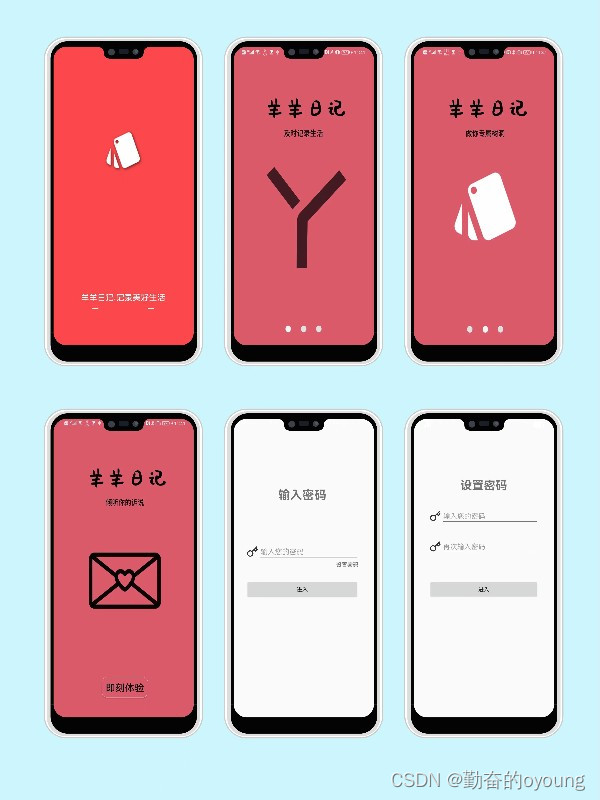
1.启动页、引导页及登陆注册
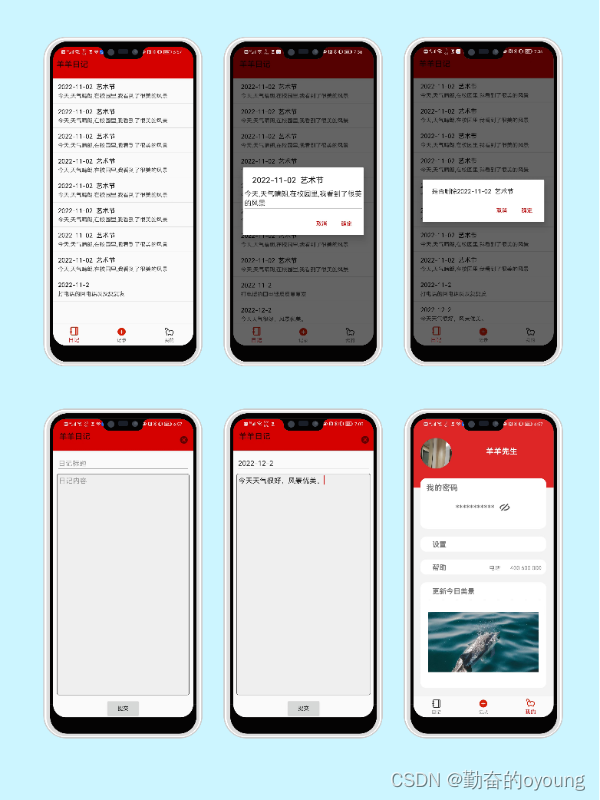
2.日记相关功能
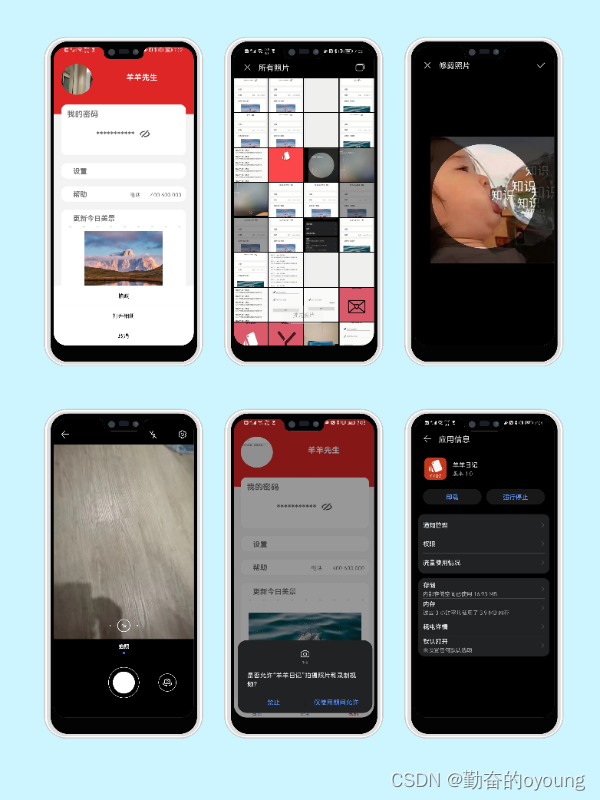
3.个人中心界面
二、功能介绍
1.主要功能
- 实现应用启动页及引导页
- 实现设置密码进入APP,对密码进行加密处理
- 实现底部导航栏,分为日记列表,新建日记,个人中心模块
- 实现对日记删除、修改、新增的基础功能
- 实现圆形头像,通过相册及拍照并裁剪图片设置头像。可实时保存。
- 实现网络更新个人中心美图。
- 对密码展示及关闭,跳转应用设置界面
- 动态获取拍照及相册访问权限
…
…
2.涉及知识点
- activity与fragment数据传递、页面更新、相互跳转。
- SharedPrefrenced存储、文件存储、文件加密。
- Android应用权限获取及设置
- 控件的使用:Button、EditText、AlertDialog、Imageview、ImageButton、viewPager2、Toolbar、RecycleView、NavigationButton等
- 布局的使用:LinearLayout、ConstraintLayout、RelativeLayout等
- 调用Android系统应用
- 自定义View:底部弹窗(比较复杂)、圆形头像
- Glide框架使用:网络加载图片
- Android框架:MVC
…
…
三、实现思路
- MainActivity中使用BottomNavigationView、ViewPager2、Toolbar实现。
public class MainActivity extends AppCompatActivity {private BottomNavigationView bottomNavigationView;@Overrideprotected void onCreate(Bundle savedInstanceState) {super.onCreate(savedInstanceState);setContentView(R.layout.activity_main);initToolbar();initFragment();initNavigationBottom();}@SuppressLint("ResourceAsColor")private void initNavigationBottom() {bottomNavigationView = findViewById(R.id.navigation_bottom);bottomNavigationView.setItemIconTintList(null);bottomNavigationView.setOnNavigationItemSelectedListener(itemSelectedListener);}@Overridepublic boolean onCreateOptionsMenu(Menu menu) {return super.onCreateOptionsMenu(menu);}private void initFragment() {DiariesFragment diariesFragment = getDiariesFragment();if (diariesFragment == null) {diariesFragment = new DiariesFragment();ActivityUtils.addFragmentToActivity(getSupportFragmentManager(), diariesFragment, R.id.content);}}private DiariesFragment getDiariesFragment() {return (DiariesFragment) getSupportFragmentManager().findFragmentById(R.id.content);}private void initToolbar() {//设置顶部状态栏为透明getWindow().addFlags(WindowManager.LayoutParams.FLAG_TRANSLUCENT_STATUS);Toolbar toolbar = findViewById(R.id.toolbar);setSupportActionBar(toolbar);}private final BottomNavigationView.OnNavigationItemSelectedListener itemSelectedListener = item -> {switch (item.getItemId()) {case R.id.menu_diary:MeController.setToolbarVisibility(this);ActivityUtils.removeFragmentTOActivity(getSupportFragmentManager(), getSupportFragmentManager().findFragmentById(R.id.content));ActivityUtils.addFragmentToActivity(getSupportFragmentManager(), new DiariesFragment(), R.id.content);break;case R.id.menu_me:findViewById(R.id.toolbar).setVisibility(View.GONE);ActivityUtils.removeFragmentTOActivity(getSupportFragmentManager(), getSupportFragmentManager().findFragmentById(R.id.content));ActivityUtils.addFragmentToActivity(getSupportFragmentManager(), new MeFragment(), R.id.content);break;case R.id.menu_new:bottomNavigationView.setVisibility(View.GONE);MeController.setToolbarVisibility(this);ActivityUtils.removeFragmentTOActivity(getSupportFragmentManager(), getSupportFragmentManager().findFragmentById(R.id.content));ActivityUtils.addFragmentToActivity(getSupportFragmentManager(), new AddDiaryFragment(), R.id.content);break;}return true;};
}
MainActivity的layout
<?xml version="1.0" encoding="utf-8"?>
<LinearLayoutxmlns:android="http://schemas.android.com/apk/res/android"xmlns:app="http://schemas.android.com/apk/res-auto"xmlns:tools="http://schemas.android.com/tools"android:layout_width="match_parent"android:layout_height="match_parent"android:orientation="vertical"tools:context=".MainActivity"><com.google.android.material.appbar.AppBarLayoutandroid:layout_width="match_parent"android:layout_height="wrap_content"><androidx.appcompat.widget.Toolbarandroid:id="@+id/toolbar"android:layout_width="match_parent"android:layout_height="wrap_content"android:background="?attr/colorPrimary"android:minHeight="?attr/actionBarSize"android:fitsSystemWindows="true"android:theme="@style/Widget.AppCompat.Toolbar"app:popupTheme="@style/ThemeOverlay.AppCompat.Light"/></com.google.android.material.appbar.AppBarLayout><FrameLayoutandroid:id="@+id/content"android:layout_width="match_parent"android:layout_height="0dp"android:layout_weight="1"/><com.google.android.material.bottomnavigation.BottomNavigationViewandroid:id="@+id/navigation_bottom"android:layout_width="match_parent"android:layout_height="wrap_content"app:menu="@menu/menu_navigation"android:background="?android:attr/windowBackground"/></LinearLayout>
- ViewPager2中切换不同fragment,对应导航栏新增日记、个人中心及日记列表。
public class DiariesFragment extends Fragment {private DiariesController mController;@Overridepublic void onCreate(@Nullable Bundle savedInstanceState) {super.onCreate(savedInstanceState);mController = new DiariesController(this);}@Nullable@Overridepublic View onCreateView(@NonNull LayoutInflater inflater, @Nullable ViewGroup container, @Nullable Bundle savedInstanceState) {View root = inflater.inflate(R.layout.fragment_diaries, container, false);mController.setDiariesList(root.findViewById(R.id.diaries_list));return root;}@Overridepublic void onResume() {super.onResume();mController.loadDiaries();}
}
DiariesFragment的layout
<?xml version="1.0" encoding="utf-8"?>
<RelativeLayout xmlns:android="http://schemas.android.com/apk/res/android"android:layout_width="match_parent" android:layout_height="match_parent"android:orientation="vertical"><androidx.recyclerview.widget.RecyclerViewandroid:id="@+id/diaries_list"android:layout_width="match_parent"android:layout_height="wrap_content"/></RelativeLayout>
public class AddDiaryFragment extends Fragment implements View.OnClickListener {private AddDiaryController mController;private View edit_layout;private Button btn_confirm;private EditText edit_title;private EditText edit_desc;@Overridepublic void onCreate(@Nullable Bundle savedInstanceState) {super.onCreate(savedInstanceState);mController = new AddDiaryController(this);}private void initView(View view) {btn_confirm = view.findViewById(R.id.add_diary_confirm);btn_confirm.setOnClickListener(this);edit_title = view.findViewById(R.id.edit_add_title);edit_desc = view.findViewById(R.id.edit_add_desc);edit_layout = view.findViewById(R.id.edit_layout);edit_layout.setOnClickListener(this);}@Overridepublic void onCreateOptionsMenu(@NonNull Menu menu, @NonNull MenuInflater inflater) {inflater.inflate(R.menu.menu_cancel, menu);}@Overridepublic boolean onOptionsItemSelected(@NonNull MenuItem item) {switch (item.getItemId()) {case R.id.menu_cancel:mController.closeWriteDiary(getActivity().getSupportFragmentManager(), this);mController.setNavigationVisibility();return true;}return false;}@Nullable@Overridepublic View onCreateView(@NonNull LayoutInflater inflater, @Nullable ViewGroup container, @Nullable Bundle savedInstanceState) {View root = inflater.inflate(R.layout.fragment_add_diary, container, false);initView(root);return root;}@Overridepublic void onDestroy() {super.onDestroy();}@Overridepublic void onClick(View view) {switch (view.getId()) {case R.id.add_diary_confirm:mController.addDiaryToRepository(edit_title.getText().toString().trim(), edit_desc.getText().toString().trim());mController.setNavigationVisibility();mController.closeWriteDiary(getActivity().getSupportFragmentManager(), this);break;case R.id.edit_layout:mController.changeFocus(edit_desc);break;}}
}
AddDiaryFragment的layout
<?xml version="1.0" encoding="utf-8"?>
<LinearLayoutxmlns:android="http://schemas.android.com/apk/res/android"android:layout_width="match_parent"android:layout_height="match_parent"android:orientation="vertical"><LinearLayoutandroid:layout_width="match_parent"android:layout_height="wrap_content"android:layout_marginTop="10dp"android:layout_marginStart="10dp"android:layout_marginEnd="10dp"android:orientation="vertical"><EditTextandroid:id="@+id/edit_add_title"android:hint="@string/add_title_hint"android:minLines="1"android:layout_width="match_parent"android:layout_height="wrap_content" /></LinearLayout><LinearLayoutandroid:id="@+id/edit_layout"android:layout_width="match_parent"android:layout_height="0dp"android:layout_weight="1"android:layout_marginTop="5dp"android:layout_marginStart="10dp"android:layout_marginEnd="10dp"android:layout_marginBottom="10dp"><LinearLayoutandroid:layout_width="match_parent"android:layout_height="match_parent"android:paddingStart="5dp"android:paddingTop="5dp"android:paddingEnd="5dp"android:paddingBottom="5dp"android:background="@drawable/edit_background"><EditTextandroid:id="@+id/edit_add_desc"android:hint="@string/add_title_description"android:gravity="top"android:layout_width="match_parent"android:layout_height="wrap_content"android:scrollbars="vertical"android:background="@null"/></LinearLayout></LinearLayout><LinearLayoutandroid:layout_width="match_parent"android:layout_height="wrap_content"android:gravity="center"android:orientation="horizontal"><Buttonandroid:id="@+id/add_diary_confirm"android:text="@string/btn_ok"android:layout_width="wrap_content"android:layout_height="wrap_content"/></LinearLayout>
</LinearLayout>
- 将应用密码加密保存与文件中。每次登陆获取密码并对比。
public class LoginDirectActivity extends AppCompatActivity implements View.OnClickListener {private EditText edit_input_text;private Button btn_comeIn;private TextView tv_setPsw;private static final String TAG = "Login2Activity";@Overrideprotected void onCreate(Bundle savedInstanceState) {super.onCreate(savedInstanceState);setContentView(R.layout.activity_direct_login);bindView();}private void bindView() {getWindow().addFlags(WindowManager.LayoutParams.FLAG_TRANSLUCENT_STATUS);edit_input_text = findViewById(R.id.edit_login2_input_text);btn_comeIn = findViewById(R.id.btn_login2_comeIn);btn_comeIn.setOnClickListener(this);tv_setPsw = findViewById(R.id.tv_setPsw);tv_setPsw.setOnClickListener(this);}@Overridepublic void onClick(View v) {switch (v.getId()) {case R.id.tv_setPsw:Intent setPsw_intent = new Intent(LoginDirectActivity.this, LoginActivity.class);startActivity(setPsw_intent);LoginDirectActivity.this.finish();
//                overridePendingTransition(R.anim.out_to_left,R.anim.in_from_right);break;case R.id.btn_login2_comeIn:String psw = edit_input_text.getText().toString().trim();if (psw.isEmpty()) {Toast.makeText(this, "密码不能为空!", Toast.LENGTH_SHORT).show();return;}String readInfoByContext = FileUtils.readInfoByContext(this);if (psw.equals(readInfoByContext)) {Toast.makeText(this, "登录成功!", Toast.LENGTH_SHORT).show();Intent intent = new Intent(this, MainActivity.class);startActivity(intent);
//                    overridePendingTransition(R.anim.out_to_left,R.anim.in_from_right);} else {Toast.makeText(this, "密码不正确!", Toast.LENGTH_SHORT).show();}break;}}
}
LoginDirectActivity 的layout
<?xml version="1.0" encoding="utf-8"?>
<androidx.constraintlayout.widget.ConstraintLayout xmlns:android="http://schemas.android.com/apk/res/android"xmlns:app="http://schemas.android.com/apk/res-auto"xmlns:tools="http://schemas.android.com/tools"android:layout_width="match_parent"android:layout_height="match_parent"tools:context=".view.LoginDirectActivity"><Buttonandroid:id="@+id/btn_login2_comeIn"android:layout_width="match_parent"android:layout_height="wrap_content"android:layout_marginStart="40dp"android:layout_marginEnd="40dp"android:text="进入"app:layout_constraintBottom_toTopOf="@+id/guideline5"app:layout_constraintEnd_toEndOf="parent"app:layout_constraintStart_toStartOf="parent" /><LinearLayoutandroid:id="@+id/linearLayout"android:layout_width="match_parent"android:layout_height="wrap_content"android:layout_marginStart="40dp"android:layout_marginEnd="40dp"android:gravity="center_vertical"android:orientation="horizontal"app:layout_constraintEnd_toEndOf="parent"app:layout_constraintStart_toStartOf="parent"app:layout_constraintTop_toTopOf="@+id/guideline7"><ImageViewandroid:layout_width="32dp"android:layout_height="32dp"android:src="@mipmap/come_in_key" /><EditTextandroid:id="@+id/edit_login2_input_text"android:hint="输入您的密码"android:inputType="textPassword"android:layout_width="match_parent"android:layout_height="wrap_content" /></LinearLayout><androidx.constraintlayout.widget.Guidelineandroid:id="@+id/guideline4"android:layout_width="wrap_content"android:layout_height="wrap_content"android:orientation="horizontal"app:layout_constraintGuide_percent="0.22" /><androidx.constraintlayout.widget.Guidelineandroid:id="@+id/guideline5"android:layout_width="wrap_content"android:layout_height="wrap_content"android:orientation="horizontal"app:layout_constraintGuide_percent="0.58" /><TextViewandroid:id="@+id/tv_login2_password_title"android:layout_width="match_parent"android:layout_height="wrap_content"android:gravity="center"android:text="输入密码"android:textSize="30sp"android:textStyle="bold"app:layout_constraintEnd_toEndOf="parent"app:layout_constraintStart_toStartOf="parent"app:layout_constraintTop_toTopOf="@+id/guideline4" /><androidx.constraintlayout.widget.Guidelineandroid:id="@+id/guideline7"android:layout_width="wrap_content"android:layout_height="wrap_content"android:orientation="horizontal"app:layout_constraintGuide_percent="0.4" /><TextViewandroid:id="@+id/tv_setPsw"android:layout_width="wrap_content"android:layout_height="wrap_content"android:text="设置密码"android:textStyle="bold"app:layout_constraintEnd_toEndOf="@+id/linearLayout"app:layout_constraintTop_toBottomOf="@+id/linearLayout" /></androidx.constraintlayout.widget.ConstraintLayout>
- 使用SharedPrefrenced存储日记内容及标题。
public final class SharedPreferencesUtils {private static final SimpleArrayMap<String, SharedPreferencesUtils> mCaches = new SimpleArrayMap<>();private SharedPreferences mSharedPreferences;private SharedPreferencesUtils(final String spName, final int mode) {mSharedPreferences = YyApplication.get().getSharedPreferences(spName, mode);}public static SharedPreferencesUtils getInstance(String spName) {SharedPreferencesUtils utils = mCaches.get(spName);if (utils == null) {utils = new SharedPreferencesUtils(spName, Context.MODE_PRIVATE);}return utils;}public void put(final String key, final String value) {mSharedPreferences.edit().putString(key, value).apply();}public String get(final String key) {return mSharedPreferences.getString(key, "");}public void remove(final String key) {mSharedPreferences.edit().remove(key).apply();}
}
下载链接
源码下载:https://pan.baidu.com/s/1bzSSuPrtlq1m5UG29TWvoQ
提取码:1111 (好像不需要)
总结
以上就是今天讲的内容,本文仅仅简单介绍了Android日记APP,需要掌握上述知识点,能够较好的理解此应用逻辑。