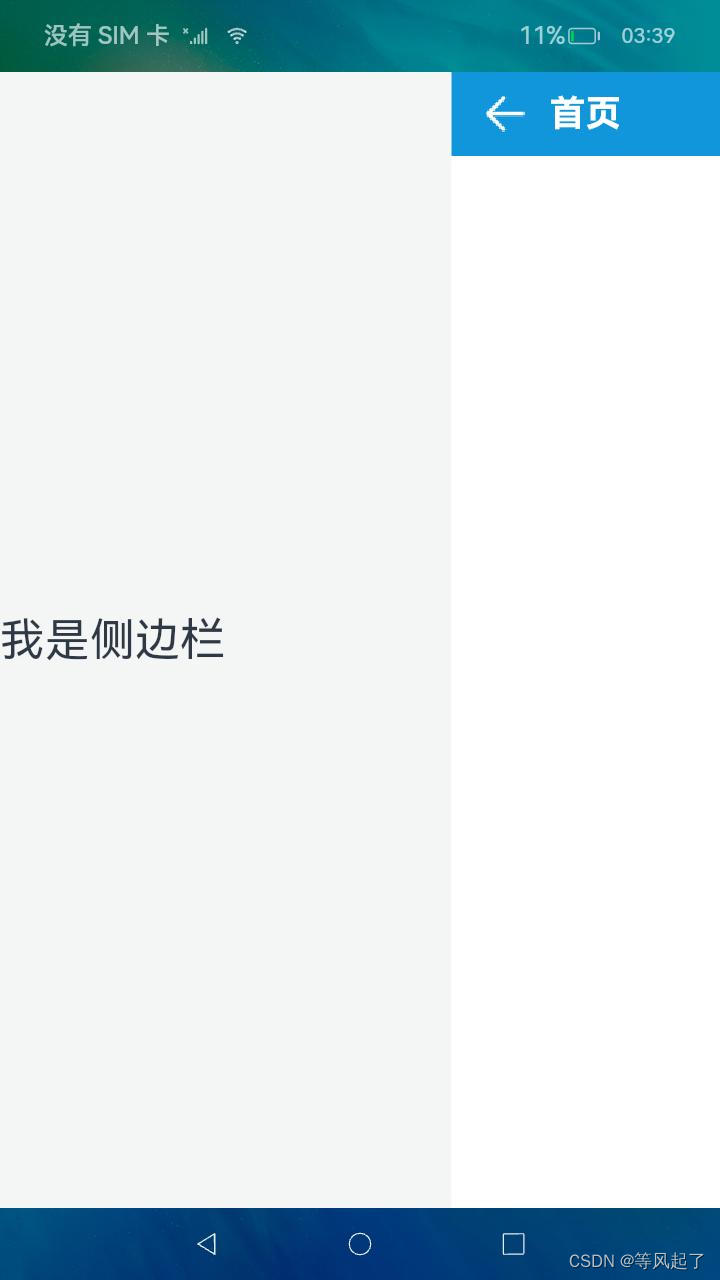
鸿蒙自定义侧滑菜单布局(DrawerLayout)
)
前言
为了实现安卓中的侧滑菜单布局效果,通过查找鸿蒙的布局控件,发现SideBarContainer控件有点像,但是使用中发现并不是很符合我们的UI交互效果,因此我在鸿蒙中通过自定义布局的方式实现,本文主要介绍该自定义控件如何使用、SideBarContainer原生控件如何使用,后面会介绍如何通过自定义实现侧滑菜单布局。
DeVEcoStudio版本如下:
"minAPIVersion": 9,
"targetAPIVersion": 9,
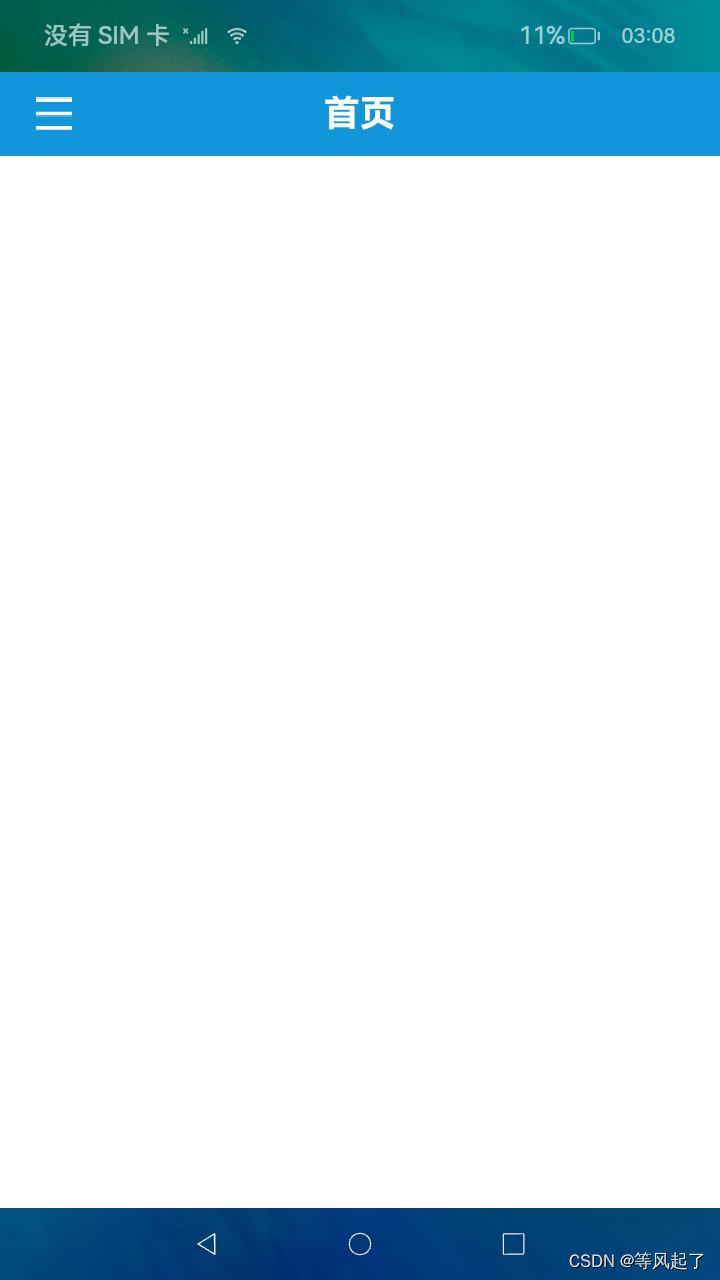
控件效果

如何使用
1、DrawerLayout.har包的引用
DrawerLayout.har下载地址:https://download.csdn.net/download/Abner_Crazy/88864397
在entry下的main目录下新建libs目录将下载完成的DrawerLayout.har拷贝到该目录,然后在oh-package.json5文件中添加对DrawerLayout.har的引用
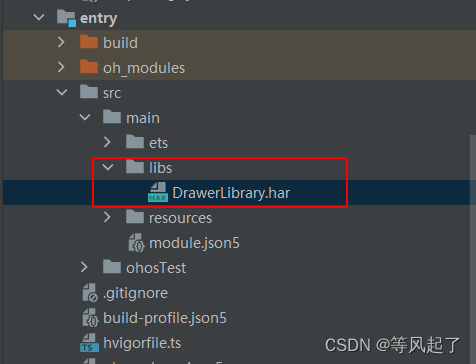
oh-package.json5文件
{"license": "","devDependencies": {},"author": "","name": "entry","description": "Please describe the basic information.","main": "","version": "1.0.0","dependencies": {"@app/DrawerLibrary": "file:./src/main/libs/DrawerLibrary.har"}
}
2、调用DrawerLayout布局
import { DrawerController, DrawerLayout } from '@app/DrawerLibrary'@Entry
@Component
struct Index {@State controller: DrawerController = new DrawerController()@State isShowSideBar: boolean = false@BuilderleftView() {Text('我是侧边栏').fontSize(30)}@BuilderrightView() {Column() {RelativeContainer() {Image(this.isShowSideBar ? $r('app.media.drawer_select') : $r('app.media.drawer_normal')).width(32).height(32).id('imageDrawer').margin({ left: 20 }).alignRules({center: { anchor: '__container__', align: VerticalAlign.Center },left: { anchor: '__container__', align: HorizontalAlign.Start }}).onClick(() => {if (this.isShowSideBar) {this.controller.hideSideBar()} else {this.controller.showSideBar()}})Text('首页').fontSize(24).fontColor(Color.White).fontWeight(FontWeight.Bold).id("textTitle").alignRules({center: { anchor: '__container__', align: VerticalAlign.Center },middle: { anchor: '__container__', align: HorizontalAlign.Center }})}.backgroundColor('#1296db').width('100%').height(56)}.width('100%').height('100%')}build() {Stack() {DrawerLayout({isShowSideBar: this.isShowSideBar,controller: this.controller,leftView: () => this.leftView(),rightView: () => this.rightView()})}.width('100%').height('100%')}
}
DrawerLayout参数解释:
| 属性 | 是否必须 | 描述 |
| isShowSideBar | 是 | 侧边栏是否显示 |
| controller | 是 | 布局控制器,有两个方法: showSideBar():显示侧边栏 hideSideBar():隐藏侧边栏 |
| leftView | 是 | 左侧侧边栏的布局 |
| rightView | 是 | 右侧内容的布局 |
| sideBarWidth | 否 | 左侧侧边栏的宽度 |
鸿蒙原生侧边栏布局使用介绍
SideBarContainer控件官方介绍:sidebarcontainer介绍

1、SideBarContainer调用
@Entry
@Component
struct Index {@State isShowSideBar: boolean = false@BuilderleftView() {Text('我是侧边栏').fontSize(30)}@BuilderrightView() {Column() {RelativeContainer() {Image(this.isShowSideBar ? $r('app.media.drawer_select') : $r('app.media.drawer_normal')).width(32).height(32).id('imageDrawer').margin({ left: 20 }).alignRules({center: { anchor: '__container__', align: VerticalAlign.Center },left: { anchor: '__container__', align: HorizontalAlign.Start }}).onClick(() => {this.isShowSideBar = !this.isShowSideBar})Text('首页').fontSize(24).fontColor(Color.White).fontWeight(FontWeight.Bold).id("textTitle").alignRules({center: { anchor: '__container__', align: VerticalAlign.Center },middle: { anchor: '__container__', align: HorizontalAlign.Center }})}.backgroundColor('#1296db').width('100%').height(56)}.width('100%').height('100%')}build() {Stack() {SideBarContainer(SideBarContainerType.Embed) {this.leftView()this.rightView()}.showSideBar(this.isShowSideBar).showControlButton(false) //是否显示控制按钮.sideBarWidth(300).maxSideBarWidth(300).onChange((value: boolean) => {console.info('status:' + value)})}.width('100%').height('100%')}
}
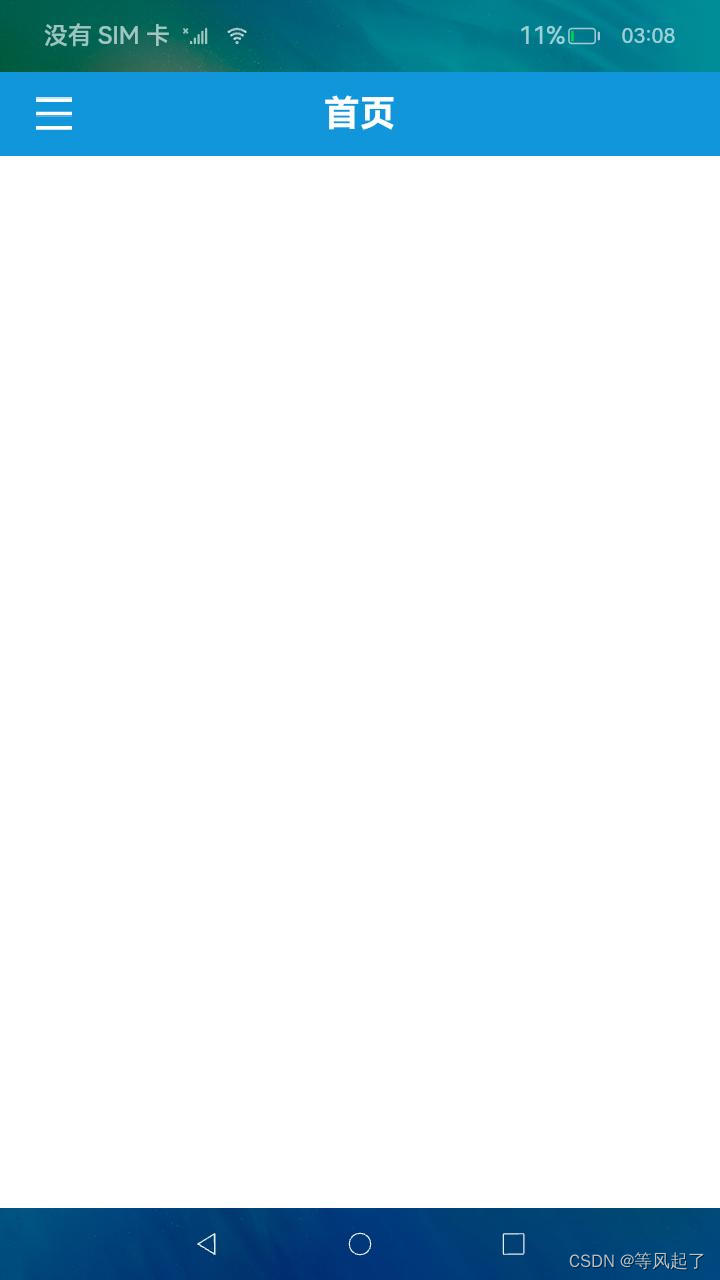
2、控件效果: