openEuler 22.03 LTS 上源码安装 PostgreSQL 15

安装PostgreSQL 15
1 安装必要的依赖
#yum install -y readline-devel zlib-devel gcc
2、下载源码
# wget https://ftp.postgresql.org/pub/source/v15.6/postgresql-15.6.tar.gz
# tar -xzvf postgresql-15.6.tar.gz
3 配置
# cd postgresql-15.6/
# ./configure
4 编译安装
# ./configure
# make
# make install
5 创建用户和用户组
# groupadd postgres
# useradd -g postgres postgres
# passwd postgres
更改用户 postgres 的密码 。
新的密码:
重新输入新的密码:
passwd:所有的身份验证令牌已经成功更新。
6 初始化数据库
6.1 创建数据目录
# mkdir /usr/local/pgsql/data
# chown postgres /usr/local/pgsql/data
6.2 切换到 postgres 操作系统用户
# su - postgres
6.3 初始化数据库
[postgres@localhost ~]$ /usr/local/pgsql/bin/initdb -D /usr/local/pgsql/data
The files belonging to this database system will be owned by user "postgres".
This user must also own the server process.The database cluster will be initialized with locale "zh_CN.UTF-8".
The default database encoding has accordingly been set to "UTF8".
initdb: could not find suitable text search configuration for locale "zh_CN.UTF-8"
The default text search configuration will be set to "simple".Data page checksums are disabled.fixing permissions on existing directory /usr/local/pgsql/data ... ok
creating subdirectories ... ok
selecting dynamic shared memory implementation ... posix
selecting default max_connections ... 100
selecting default shared_buffers ... 128MB
selecting default time zone ... Asia/Shanghai
creating configuration files ... ok
running bootstrap script ... ok
performing post-bootstrap initialization ... ok
syncing data to disk ... okinitdb: warning: enabling "trust" authentication for local connections
initdb: hint: You can change this by editing pg_hba.conf or using the option -A, or --auth-local and --auth-host, the next time you run initdb.Success. You can now start the database server using:/usr/local/pgsql/bin/pg_ctl -D /usr/local/pgsql/data -l logfile start
6.4 启动数据库
[postgres@localhost ~]$ /usr/local/pgsql/bin/pg_ctl -D /usr/local/pgsql/data -l logfile start
waiting for server to start.... done
server started
[postgres@localhost ~]$
把 start 改为 stop 就是停止。
7 安装后的操作系统配置
7.1 以管理员的身份配置/etc/profile
在/etc/profile.d 目录下新增 postgresql.sh 文件,内容如下
[root@localhost profile.d]# cat postgresql.sh
export PATH=$PATH:/usr/local/pgsql/bin
7.2 设置开机自动启动
(1)创建启动文件
在/usr/lib/systemd/system 下创建文件 postgresql.service,内容如下:
# vim postgresql.service
[Unit]
Description=PostgreSQL database server
After=network.target
[Service]
Type=forkingUser=postgres
Group=postgres
OOMScoreAdjust=-1000
Environment=PGDATA=/usr/local/pgsql/data
Environment=PGPORT=5432ExecStart=/usr/local/pgsql/bin/pg_ctl start -D ${PGDATA} -l ${PGDATA}/logfile -s -o "-p ${PGPORT}" -w -t 300
ExecStop=/usr/local/pgsql/bin/pg_ctl stop -D ${PGDATA} -l ${PGDATA}/logfile -s -m fast
ExecReload=/usr/local/pgsql/bin/pg_ctl reload -D ${PGDATA} -l ${PGDATA}/logfile -sTimeoutSec=300[Install]
WantedBy=multi-user.target
(2)设置自动启动
# chmod a+x postgresql.service
# systemctl enable postgresql.service
# systemctl start postgresql.service
7.3 设置远程访问
PostgreSQL安装后,默认是只接受本地机器连接访问。如果想在其他主机上访问PostgreSQL数据库服务器,就需要进行相应的配置。以下是我配置远程连接PostgreSQL数据库方式:
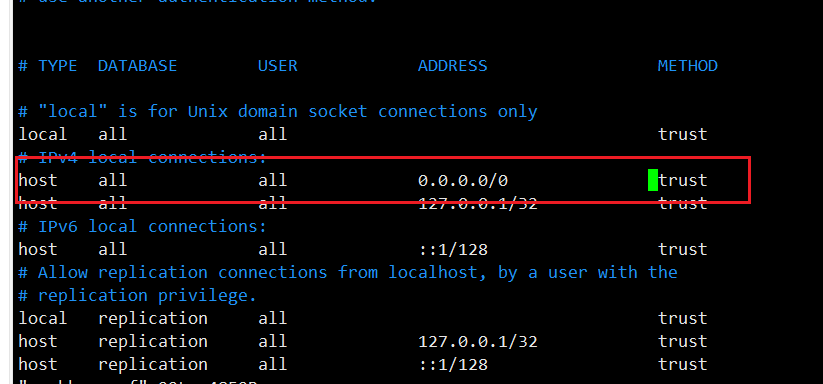
(1)pg_hba.conf 配置PostgreSQL数据库的访问权限
修改配置文件:(PostgreSQL安装路径下的data,也是安装时data的默认路径)data目录下的 pg_hba.conf 和 postgresql.conf。
# cd /usr/local/pgsql/data
# vim pg_hba.conf
找到“# IPv4 local connections:“后,回车另起一行,添加参数行如下,保存。
host all all 0.0.0.0/0 trust
其中0.0.0.0/0表示运行任意ip地址访问
(2)postgresql.conf 配置PostgreSQL数据库服务器的相应的参数
找到“listen_addresses“参数后,设置listen_addresses = ‘*’,保存。
# vim postgresql.conf
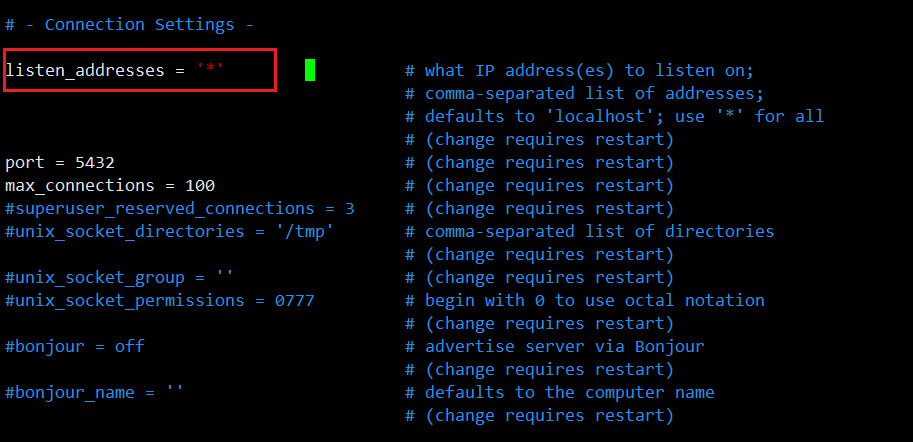
设置好后重启服务即可被远程连接。
8 问题
8.1 远程连接失败解决方案
一般服务器端防火窗入站规则打开后,如果外部物理机远程连接失败。 建议在服务器端安装Navicat检查是否能够连接成功。如果可以连接成功,请在服务器进行安全组端口开放。
开放端口
# systemctl start firewalld.service(开启防火墙)
# systemctl stop firewalld.service(关闭防火墙)
# systemctl status firewalld(查看防火墙是否开启)
如需要开放80和443端口,如下:
# firewall-cmd --zone=public --permanent --add-port=80/tcp
# firewall-cmd --zone=public --permanent --add-port=443/tcp
# firewall-cmd --reload
查看所有开启的端口:
# firewall-cmd --list-ports
常用命令介绍:
firewall-cmd --state ##查看防火墙状态,是否是running
firewall-cmd --reload ##重新载入配置,比如添加规则之后,需要执行此命令
firewall-cmd --get-zones ##列出支持的zone
firewall-cmd --get-services ##列出支持的服务,在列表中的服务是放行的
firewall-cmd --query-service ftp ##查看ftp服务是否支持,返回yes或者no
firewall-cmd --add-service=ftp ##临时开放ftp服务
firewall-cmd --add-service=ftp --permanent ##永久开放ftp服务
firewall-cmd --remove-service=ftp --permanent ##永久移除ftp服务
firewall-cmd --add-port=80/tcp --permanent ##永久添加80端口
iptables -L -n ##查看规则,这个命令是和iptables的相同的