10-微信小程序 图片 相机 二维码 动画相关API(实现选择相册、拍照、录像、动画)
)
10-微信小程序 图片 相机 二维码 动画相关API(实现选择相册、拍照、录像、动画)
文章目录
- 10.1选择图片
- wx.chooseImage(Object object)
- object.success 回调函数
- 代码
- 效果
- 10.2 预览图片
- wx.previewImage(Object object)
- 代码
- 效果
- 10.3 相机API
- CameraContext wx.createCameraContext()
- CameraContext
- 效果
- 10.4 二维码
- wx.scanCode(Object object)
- object.success 回调函数
- 示例代码
- 代码
- 效果
- 1.5 动画
10.1选择图片
wx.chooseImage(Object object)
功能描述: 从本地相册选择图片或使用相机拍照。
从基础库 2.21.0 开始,本接口停止维护,请使用 wx.chooseMedia 代替
以 Promise 风格 调用:支持
小程序插件:支持,需要小程序基础库版本不低于 1.9.6
微信 Windows 版:支持
微信 Mac 版:支持
官方文档
参数
Object object
| 属性 | 类型 | 默认值 | 必填 | 说明 |
|---|---|---|---|---|
| count | number | 9 | 否 | 最多可以选择的图片张数 |
| sizeType | Array. | [‘original’, ‘compressed’] | 否 | 所选的图片的尺寸 |
| sourceType | Array. | [‘album’, ‘camera’] | 否 | 选择图片的来源 |
| success | function | 否 | 接口调用成功的回调函数 | |
| fail | function | 否 | 接口调用失败的回调函数 | |
| complete | function | 否 | 接口调用结束的回调函数(调用成功、失败都会执行) |
object.sizeType 的合法值
合法值 说明 original 原图 compressed 压缩图
object.sourceType 的合法值
合法值 说明 album 从相册选图 camera 使用相机
object.success 回调函数
参数
Object res
| 属性 | 类型 | 说明 | 最低版本 | |
|---|---|---|---|---|
| tempFilePaths | Array. | 图片的本地临时文件路径列表 (本地路径) | ||
| tempFiles | Array. | 图片的本地临时文件列表 | 1.2.0 |
res.tempFiles 的结构
结构属性 类型 说明 path string 本地临时文件路径 (本地路径) size number 本地临时文件大小,单位 B
代码
// pages/demo/index.js
Page({data: {},onLoad: function(options) {},/*** 选择图片*/chooseImage(){wx.chooseImage({count: 5,sizeType: ['original', 'compressed'],sourceType: ['album', 'camera'],success(res) {console.log(res.tempFilePaths);}})}
})
页面
<!-- pages/demo/index.wxml --><button bindtap="chooseImage" size='mini' type="primary">选择照片</button>
效果
以上代码做个测试,需要做真机调试如下图
真机调试->手机扫描->在手机上点击【选择照片】


10.2 预览图片
wx.previewImage(Object object)
功能描述: 在新页面中全屏预览图片。预览的过程中用户可以进行保存图片、发送给朋友等操作。
以 Promise 风格 调用:支持
小程序插件:支持,需要小程序基础库版本不低于 1.9.6
微信 Windows 版:支持
微信 Mac 版:支持
官方文档
参数
Object object
| 属性 | 类型 | 默认值 | 必填 | 说明 | 最低版本 |
|---|---|---|---|---|---|
| urls | Array. | 是 | 需要预览的图片链接列表。2.2.3 起支持云文件ID。 | ||
| showmenu | boolean | true | 否 | 是否显示长按菜单。 | 2.13.0 |
| current | string | urls 的第一张 | 否 | 当前显示图片的链接 | |
| referrerPolicy | string | no-referrer | 否 | origin: 发送完整的referrer; no-referrer: 不发送。格式固定为 https://servicewechat.com/{appid}/{version}/page-frame.html,其中 {appid} 为小程序的 appid,{version} 为小程序的版本号,版本号为 0 表示为开发版、体验版以及审核版本,版本号为 devtools 表示为开发者工具,其余为正式版本; | 2.13.0 |
| success | function | 否 | 接口调用成功的回调函数 | ||
| fail | function | 否 | 接口调用失败的回调函数 | ||
| complete | function | 否 | 接口调用结束的回调函数(调用成功、失败都会执行 |
代码
wx.previewImage({current: '', // 当前显示图片的http链接urls: [] // 需要预览的图片http链接列表
})
完整代码
// pages/demo/index.js
Page({data: {},onLoad: function(options) {},/*** 选择图片*/chooseImage(){wx.previewImage({current: 'https://img-blog.csdnimg.cn/7d9ec09660304c248c2279d72ed9d243.png', // 当前显示图片的http链接urls: ['https://img-blog.csdnimg.cn/65256cf88e2b413b9eccda34aad5ecbb.png','https://img-blog.csdnimg.cn/d4a81724a53e4f3b85ac9bc2b49bd622.png'] // 需要预览的图片http链接列表})}})
效果
真机调试->手机扫描->在手机上点击【选择照片】如下图是个预览图片的效果

10.3 相机API
官方文档
CameraContext wx.createCameraContext()
基础库 1.6.0 开始支持,低版本需做兼容处理。
小程序插件:支持,需要小程序基础库版本不低于 1.9.6
微信 Windows 版:支持
微信 Mac 版:支持
相关文档: camera 组件介绍
功能描述
创建 camera 上下文 CameraContext 对象。
返回值
CameraContext
index.wxml:
<view class="page-body"><view class="page-body-wrapper"><camera device-position="back" flash="off" binderror="error" style="width: 100%; height: 300px;"></camera><view class="btn-area"><button type="primary" bindtap="takePhoto">拍照</button></view><view class="btn-area"><button type="primary" bindtap="startRecord">开始录像</button></view><view class="btn-area"><button type="primary" bindtap="stopRecord">结束录像</button></view><view class="preview-tips">预览</view><image wx:if="{{src}}" mode="widthFix" src="{{src}}"></image><video wx:if="{{videoSrc}}" class="video" src="{{videoSrc}}"></video></view>
</view>
/* pages/demo/index.wxss */
.preview-tips {margin: 20rpx 0;}.video {margin: 50px auto;width: 100%;height: 300px;}
// pages/demo/index.js
Page({onLoad() {this.ctx = wx.createCameraContext()},takePhoto() {this.ctx.takePhoto({quality: 'high',success: (res) => {this.setData({src: res.tempImagePath})}})},startRecord() {this.ctx.startRecord({success: (res) => {console.log('startRecord')}})},stopRecord() {this.ctx.stopRecord({success: (res) => {this.setData({src: res.tempThumbPath,videoSrc: res.tempVideoPath})}})},error(e) {console.log(e.detail)}
})
全局样式
/**app.wxss**/
.container {height: 100%;display: flex;flex-direction: column;align-items: center;justify-content: space-between;padding: 200rpx 0;box-sizing: border-box;
}page {background-color: #F8F8F8;height: 100%;font-size: 32rpx;line-height: 1.6;
}.page-body {padding: 20rpx 0;
}.page-body-wrapper {display: flex;flex-direction: column;align-items: center;width: 100%;
}.btn-area {margin-top: 60rpx;box-sizing: border-box;width: 100%;padding: 0 30rpx;
}
效果

效果(需要在真机上测试)如下图
- 拍照
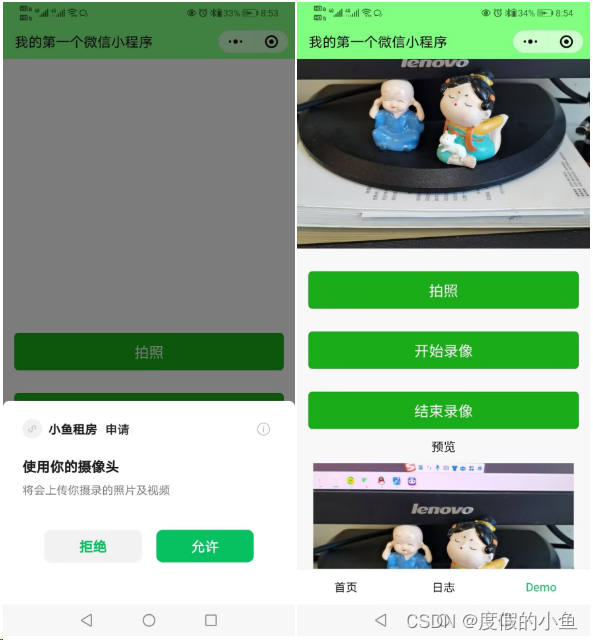
- 录像

10.4 二维码
官方文档
wx.scanCode(Object object)
基础库 1.0.0 开始支持,低版本需做兼容处理。
以 Promise 风格 调用:支持
小程序插件:支持,需要小程序基础库版本不低于 1.9.6
功能描述
调起客户端扫码界面进行扫码
参数
Object object
| 属性 | 类型 | 默认值 | 必填 | 说明 | 最低版本 |
|---|---|---|---|---|---|
| onlyFromCamera | boolean | false | 否 | 是否只能从相机扫码,不允许从相册选择图片 | 1.2.0 |
| scanType | Array. | [‘barCode’, ‘qrCode’] | 否 | 扫码类型 | 1.7.0 |
| success | function | 否 | 接口调用成功的回调函数 | ||
| fail | function | 否 | 接口调用失败的回调函数 | ||
| complete | function | 否 | 接口调用结束的回调函数(调用成功、失败都会执行) |
object.success 回调函数
参数
Object res
| 属性 | 类型 | 说明 | |
|---|---|---|---|
| result | string | 所扫码的内容 | |
| scanType | string | 所扫码的类型 | |
| charSet | string | 所扫码的字符集 | |
| path | string | 当所扫的码为当前小程序二维码时,会返回此字段,内容为二维码携带的 path | |
| rawData | string | 原始数据,base64编码 |
示例代码
// 允许从相机和相册扫码
wx.scanCode({success (res) {console.log(res)}
})// 只允许从相机扫码
wx.scanCode({onlyFromCamera: true,success (res) {console.log(res)}
})
代码
<!--index.wxml-->
<view class="container"><button type="primary" bindtap="scanCode">扫描二维码</button>
</view>
//index.js
//获取应用实例
const app = getApp()
Page({scanCode() {wx.scanCode({onlyFromCamera: true,success(res) {console.log(res)}})}
})
效果
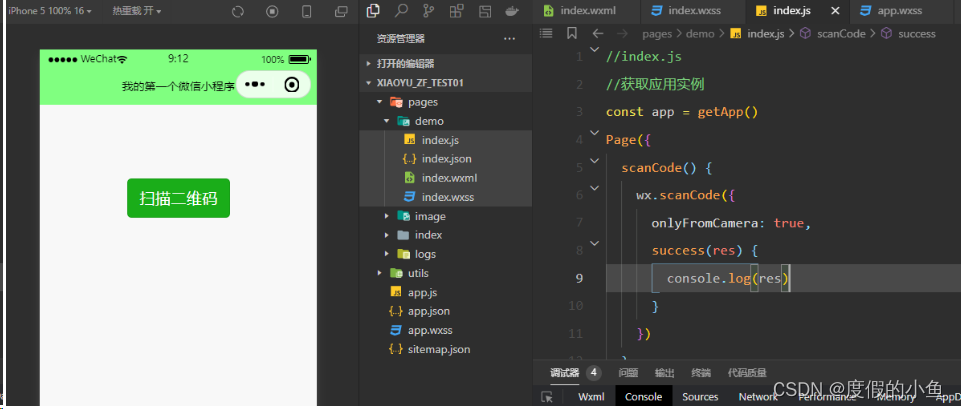
效果(需要在真机上测试)如下图
这里有个简单的二维码来用真机调试,(当此二维码无法查看时,可以找别的二维码来进行测试)

手机扫描二维码得到如下结果,返回字符串“Hello World”

1.5 动画
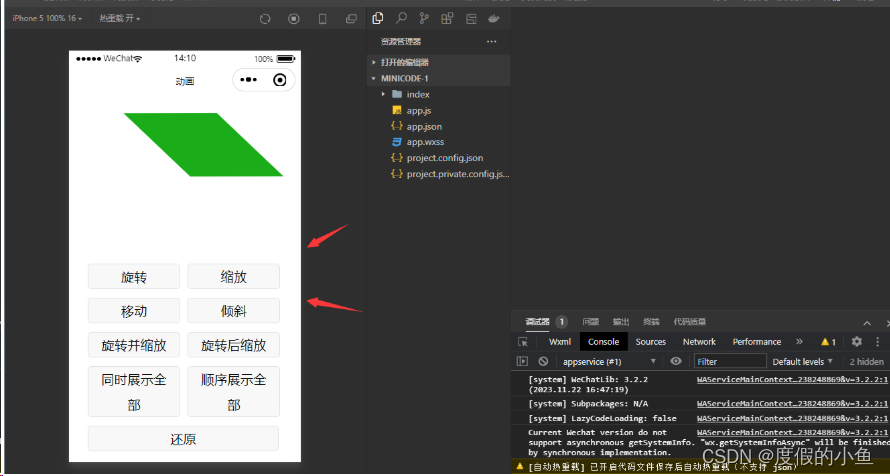
官网文档
往下拉找到-【在开发者工具中预览效果】按提示步骤操作可以直接查看效果


此专栏此阶段完成