VSCode使用

提示:文章写完后,目录可以自动生成,如何生成可参考右边的帮助文档
文章目录
- 前言
- 一、pandas是什么?
- 二、使用步骤
- 1.引入库
- 2.读入数据
- 总结
前言
提示:这里可以添加本文要记录的大概内容:
例如:随着人工智能的不断发展,机器学习这门技术也越来越重要,很多人都开启了学习机器学习,本文就介绍了机器学习的基础内容。
提示:以下是本篇文章正文内容,下面案例可供参考
一、初始
1.1安装
下载链接:Download Visual Studio Code - Mac, Linux, Windows

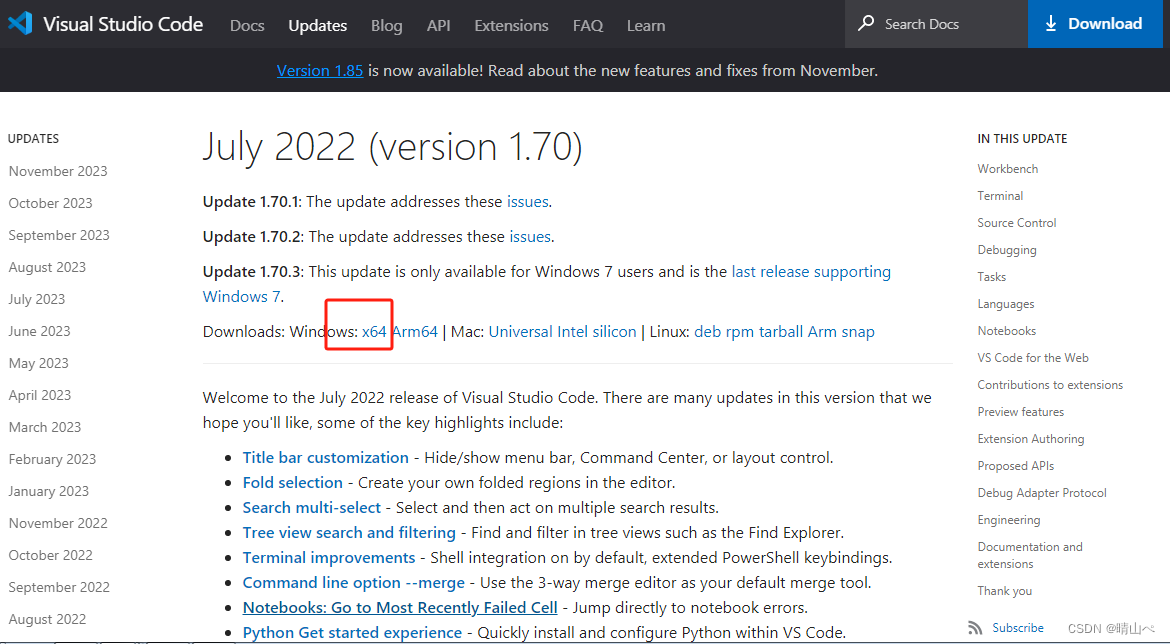
下载支持win7的版本,下载链接:Visual Studio Code July 2022
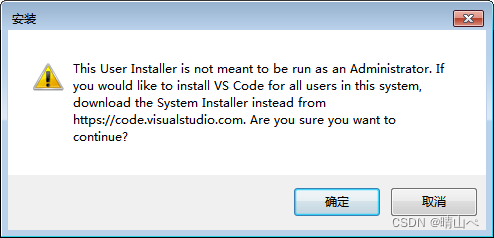
安装弹出下图,点确定
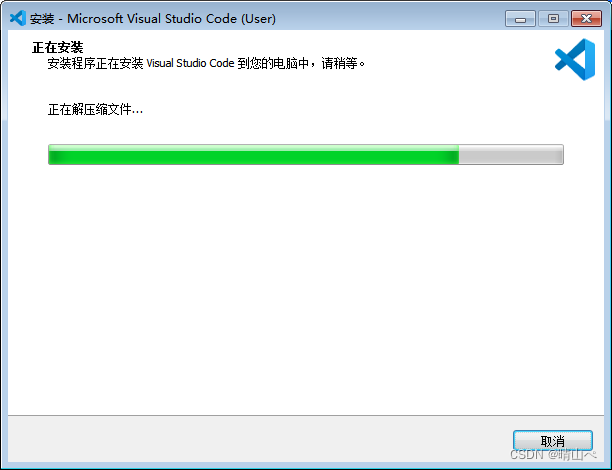
安装中
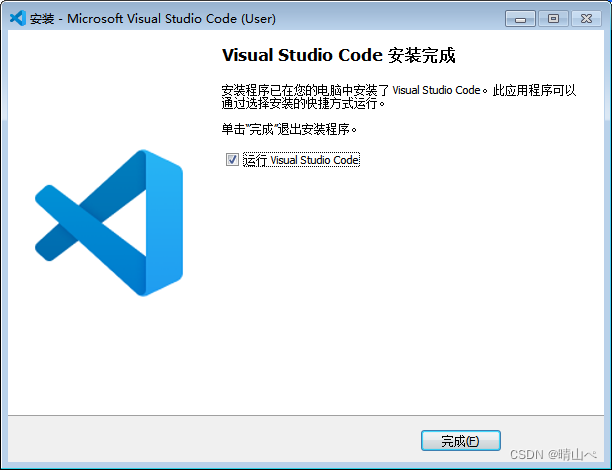
安装完成
参考:
【C语言初级阶段学习1】使用vscode运行C语言,vscode配置环境超详细过程(包括安装vscode和MinGW-W64安装及后续配置使用的详细过程,vscode用户代码片段的使用)[考研专用]-CSDN博客
第二篇:在 VsCode 上编写和调试 C 语言程序_vscode调试c语言-CSDN博客
第三篇,关于路径:浅谈vscode中指代工作区或项目的路径等配置_vscode workspacefolder-CSDN博客
二、新建一个c文件
2.1、安装插件设置成中文
vscode设置中文界面的方法:1、打开vscode,按【ctrl+shift+p】组合键;2、搜索并选择【configure display language】;3、安装中文简体语言,并重启vscode即可
2.2新建c文件
写一个c代码test.c
#include "stdio.h"int main()
{printf("this is a vscode demo!");int i;printf("Input a number here:");scanf("%d", &i);printf("We got the %d", i);system("pause");return 0;
}
根据参考别人的帖子,最后验证下面的几个文件是可行的。
c_cpp_properties.json文件
{"configurations": [{"name": "windows-gcc-x86","includePath": ["${workspaceFolder}/**"],"compilerPath": "D:/APP/codeBlock/MinGW/bin/gcc.exe","cStandard": "${default}","cppStandard": "${default}","intelliSenseMode": "windows-gcc-x86","compilerArgs": [""]}],"version": 4
}
launch.json文件
{"version": "0.2.0","configurations": [{"name": "C/C++ Runner: Debug Session","type": "cppdbg","request": "launch","args": [],"stopAtEntry": false,"externalConsole": true,"cwd": "d:/AppData/VsCode/testDemo916","program": "d:/AppData/VsCode/testDemo916/build/Debug/outDebug","MIMode": "gdb","miDebuggerPath": "gdb","setupCommands": [{"description": "Enable pretty-printing for gdb","text": "-enable-pretty-printing","ignoreFailures": true}]}]
}
settings.json
{"C_Cpp_Runner.cCompilerPath": "gcc","C_Cpp_Runner.cppCompilerPath": "g++","C_Cpp_Runner.debuggerPath": "gdb","C_Cpp_Runner.cStandard": "","C_Cpp_Runner.cppStandard": "","C_Cpp_Runner.msvcBatchPath": "","C_Cpp_Runner.useMsvc": false,"C_Cpp_Runner.warnings": ["-Wall","-Wextra","-Wpedantic","-Wshadow","-Wformat=2","-Wconversion","-Wnull-dereference","-Wsign-conversion"],"C_Cpp_Runner.enableWarnings": true,"C_Cpp_Runner.warningsAsError": false,"C_Cpp_Runner.compilerArgs": [],"C_Cpp_Runner.linkerArgs": [],"C_Cpp_Runner.includePaths": [],"C_Cpp_Runner.includeSearch": ["*","**/*"],"C_Cpp_Runner.excludeSearch": ["**/build","**/build/**","**/.*","**/.*/**","**/.vscode","**/.vscode/**"],"C_Cpp_Runner.useAddressSanitizer": false,"C_Cpp_Runner.showCompilationTime": false,"C_Cpp_Runner.msvcWarnings": ["/W4","/permissive-","/w14242","/w14287","/w14296","/w14311","/w14826","/w44062","/w44242","/w14905","/w14906","/w14263","/w44265","/w14928"],"C_Cpp_Runner.useUndefinedSanitizer": false,"C_Cpp_Runner.useLeakSanitizer": false,"C_Cpp_Runner.useLinkTimeOptimization": false,"C_Cpp_Runner.msvcSecureNoWarnings": false
}
tasks.json
{"version": "2.0.0","tasks": [{"type": "cppbuild","label": "C/C++: gcc.exe build active file","command": "D:/APP/MinGWposix/mingw64/bin/gcc.exe","args": ["-pthread","-fdiagnostics-color=always","-g","${file}","-o","${fileDirname}\\${fileBasenameNoExtension}.exe",		""],"options": {"cwd": "D:/APP/MinGWposix/mingw64/bin"},"problemMatcher": ["$gcc"],"group": "build","detail": "compiler: D:/APP/MinGWposix/mingw64/bin/gcc.exe"},{"type": "cmake","label": "CMake: configure","command": "configure","problemMatcher": [],"detail": "CMake template configure task","group": {"kind": "build","isDefault": true}}]
}
2.3 说明
1、这个工程还安装了Code runner插件,会在右上角三角形图标下拉菜单下增加一个run code选项。
2、按F5的时候会有一个console窗口,输入字符串后会一闪而过,代码中增加system("pause");可以正常显示代码运行结果。
3、执行"运行C/C++文件"后,代码会在终端显示执行结果。
4、执行"调试C/C++文件"后,代码会进行debug。
5、以上四个文件可以重复使用。
三、使用
3.1 报错1
c++遇到undefined reference to `std::ios_base::Init::~Init()
在vs新建main.cpp文件,点击“运行C/C++文件”,报错上述错误
解决办法:gcc -g xxx.cpp -lstdc++ -o xxx.exe
参考:c++遇到undefined reference to `std::ios_base::Init::~Init()‘报错解决-CSDN博客
今天太倒霉了,在vscode验证C++使用c代码。然后一直报错undefined reference to `list_func'。
然后觉得vs可能环境不太熟悉,还是换成codeblock吧,然后写下下面的代码
//test.c文件void cAndCppFunc()
{printf("this is c func!\n");
}
//test.h文件#ifndef TEST_H
#define TEST_H#ifdef __cplusplus
extern "C" {
#endif#include <stdio.h>
#include <stdlib.h>
#include "string.h"
#include "stdbool.h"
#include "ctype.h"void cAndCppFunc(); // 这里是要被C++调用的C函数#ifdef __cplusplus
}
#endif#endif//main.cpp文件#include <iostream>#include "test.h"
#include "func2.h"using namespace std;int main()
{cAndCppFunc();cout << "Hello world!" << endl;return 0;
}然后上面的是可行的代码。
可是问题在哪里呢。问题在于一开始我验证的时候。各种写错。比如c文件中我写成func2()函数,h文件中我写成fun2()函数。main文件中我又写成了func2函数。所以这么简单的问题竟然搞了大半天,气死了。
不过还是实现了c++调用c代码。以上就是c++调用c的写法
还有一个没做的就是c怎么调用c++没写。
另外还有一个问题,codeblock为什么不会出现vscode的问题?同样代码vscode中就出问题了。
还有一个问题,vscode执行F5需要怎么配置?
这边有个参考文档:VScode编译多文件执行与配置终端命令行_vscode如何编译运行-CSDN博客
launch: program ‘c: \build\Debug\outDebug’does not exist问题成功解决_outdebugdoesnot-CSDN博客
这边增加一个编译c++代码的修改点:
如果要编译c++代码,修改下面的地方
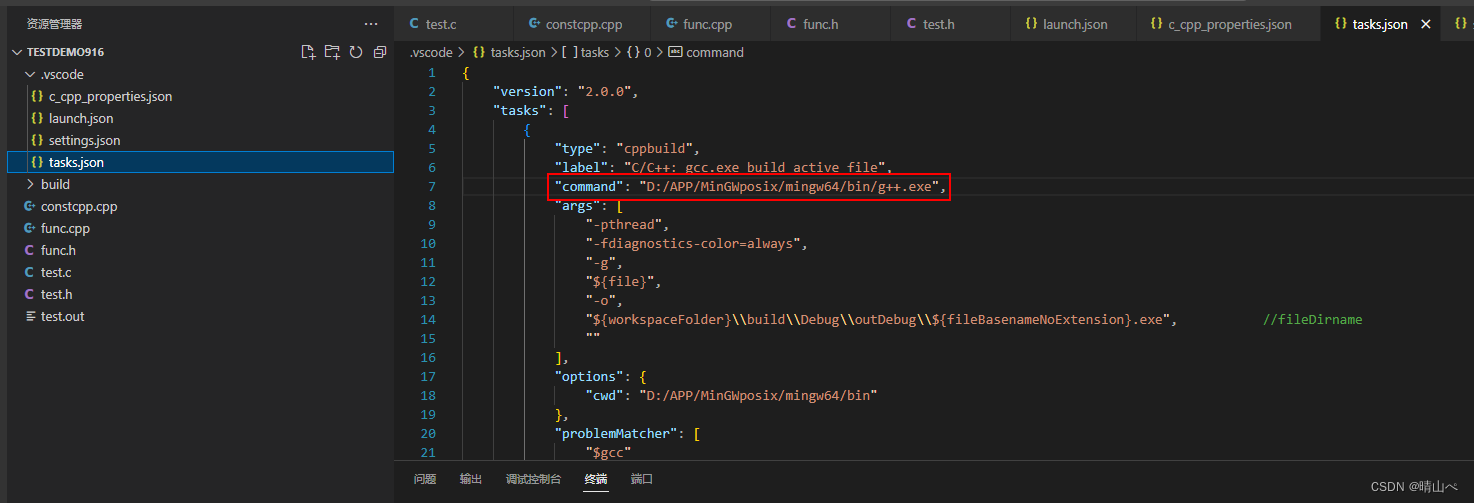
该处使用的url网络请求的数据。
总结
提示:这里对文章进行总结:
例如:以上就是今天要讲的内容,本文仅仅简单介绍了pandas的使用,而pandas提供了大量能使d我们快速便捷地处理数据的函数和方法。