flutter开发实战-设置bottomNavigationBar中间按钮悬浮效果

flutter开发实战-设置bottomNavigationBar中间按钮悬浮的效果
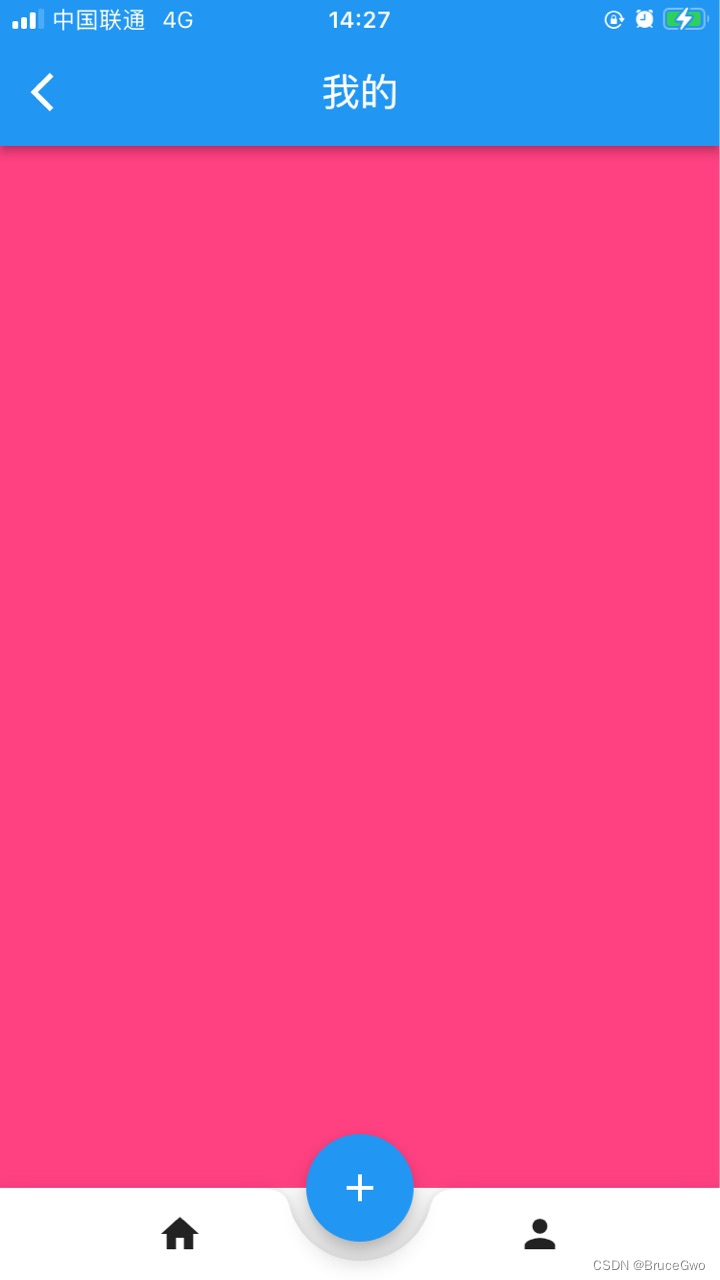
在使用tabbar时候,可以使用bottomNavigationBar来设置中间凸起的按钮,如下
一、效果图
中间按钮凸起的效果图如下
二、实现代码
我们使用BottomAppBar
一个容器,通常与[Sscaffold.bottomNavigationBar]一起使用。
使用的示例代码
Scaffold(bottomNavigationBar: BottomAppBar(color: Colors.white,child: bottomAppBarContents,),floatingActionButton: const FloatingActionButton(onPressed: null),)设置中间的凸起按钮,可以设置BottomAppBar的shape为:CircularNotchedRectangle,中间悬浮按钮嵌入BottomAppBar
设置notchMargin缺口边距。
设置floatingActionButtonLocation:FloatingActionButtonLocation.centerDocked,//放在中间
完整代码如下
import 'package:flutter/material.dart';class TabDemoPage extends StatefulWidget {const TabDemoPage({super.key});@overrideState<TabDemoPage> createState() => _TabDemoPageState();
}class _TabDemoPageState extends State<TabDemoPage> {List<String> pageTitles = [];List<Widget> pageChildren = [];int currentIndex = 0;@overridevoid initState() {// TODO: implement initStatepageTitles = ["首页","我的"];pageChildren = [Container(color: Colors.lightBlueAccent,),Container(color: Colors.pinkAccent,)];super.initState();}@overridevoid dispose() {// TODO: implement disposesuper.dispose();}Widget build(BuildContext context) {return Scaffold(appBar: AppBar(title: Text(pageTitles[currentIndex]),///导航栏标题centerTitle: true,///导航栏标题居中显示(IOS默认居中,Android默认靠左)),body: pageChildren[currentIndex],bottomNavigationBar: BottomAppBar(shape: CircularNotchedRectangle(), ///中间悬浮按钮嵌入BottomAppBarnotchMargin: 10,///缺口边距child: Row(mainAxisAlignment: MainAxisAlignment.spaceAround,children: [IconButton(icon: Icon(Icons.home),onPressed: (){setState(() {currentIndex = 0;});}),IconButton(icon: Icon(Icons.person),onPressed: (){setState(() {currentIndex = 1;});}),],),),floatingActionButton: FloatingActionButton(foregroundColor: Colors.white,elevation: 10.0,///阴影onPressed: (){},child: Icon(Icons.add),),floatingActionButtonLocation: FloatingActionButtonLocation.centerDocked,//放在中间);}
}
三、小结
flutter开发实战-设置bottomNavigationBar中间按钮悬浮的效果
学习记录,每天不停进步。