一个类似商品例表的下拉效果: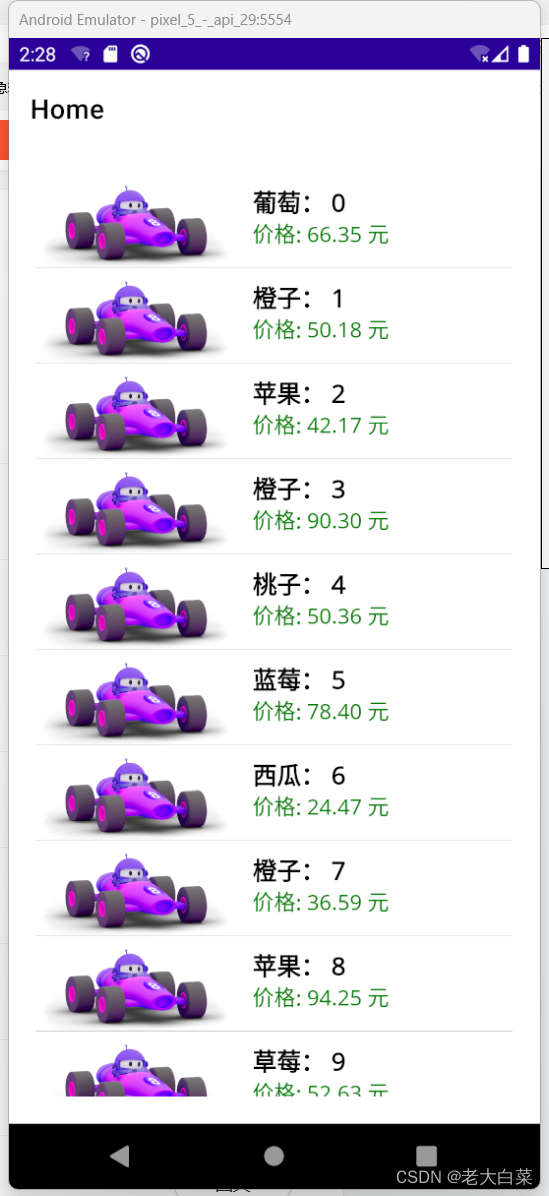
代码
新增个类为商品商体类
public class ProductItem{public string ImageSource { get; set; }public string ProductName { get; set; }public string Price { get; set; }}
界面代码:
<?xml version="1.0" encoding="utf-8" ?>
<ContentPage xmlns="http://schemas.microsoft.com/dotnet/2021/maui"xmlns:x="http://schemas.microsoft.com/winfx/2009/xaml"xmlns:d="http://schemas.microsoft.com/dotnet/2021/maui/design"xmlns:mc="http://schemas.openxmlformats.org/markup-compatibility/2006"mc:Ignorable="d"BackgroundColor="{DynamicResource PageBackgroundColor}"x:Class="fenye.MainPage"><RefreshView IsRefreshing="{Binding IsRefreshing}" Command="{Binding RefreshCommand}"><StackLayout Margin="10"><ListView ItemsSource="{Binding Items}" ItemAppearing="OnItemAppearing" RowHeight="70" Margin="20"><ListView.ItemTemplate><DataTemplate><ViewCell><Grid><Grid.ColumnDefinitions><ColumnDefinition Width="Auto" /><ColumnDefinition Width="*" /></Grid.ColumnDefinitions><Image Source="{Binding ImageSource}" Aspect="AspectFit"WidthRequest="150"HeightRequest="150" Grid.Column="0" /><StackLayout Grid.Column="1" Margin="10"><Label Text="{Binding ProductName}" FontAttributes="Bold"FontSize="18"/><Label Text="{Binding Price}" FontSize="16" TextColor="Green"/></StackLayout></Grid></ViewCell></DataTemplate></ListView.ItemTemplate></ListView></StackLayout></RefreshView>
</ContentPage>
后端代码:
using System;
using System.Collections.ObjectModel;
using System.Threading.Tasks;
using Microsoft.Maui.Controls;
using Microsoft.Maui.Controls.Xaml;
using System.ComponentModel;
using System.Runtime.CompilerServices;namespace fenye
{public class ProductItem{public string ImageSource { get; set; }public string ProductName { get; set; }public string Price { get; set; }}[XamlCompilation(XamlCompilationOptions.Compile)]public partial class MainPage : ContentPage{private ObservableCollection<ProductItem> _items;private bool _isRefreshing;public ObservableCollection<ProductItem> Items => _items;private Random _random = new Random();private string[] fruits = { "苹果", "香蕉", "橙子", "葡萄", "草莓", "梨", "桃子", "西瓜", "蓝莓", "樱桃" };public MainPage(){InitializeComponent();BindingContext = this;_items = new ObservableCollection<ProductItem>();for (int i = 0; i < 20; i++){AddNewItem();}OnPropertyChanged(nameof(Items));}public bool IsRefreshing{get => _isRefreshing;set => SetProperty(ref _isRefreshing, value);}public Command RefreshCommand => new Command(async () => await OnRefresh());private async Task OnRefresh(){IsRefreshing = true;await Task.Delay(2000);await MainThread.InvokeOnMainThreadAsync(() =>{for (int i = 0; i < 10; i++){AddNewItem();}IsRefreshing = false;});}private async void OnItemAppearing(object sender, ItemVisibilityEventArgs e){if (e.Item == _items[_items.Count - 1]){await LoadMoreItems();}}private async Task LoadMoreItems(){await Task.Delay(2000);await MainThread.InvokeOnMainThreadAsync(() =>{for (int i = 0; i < 10; i++){AddNewItem();}IsRefreshing = false;});}private void AddNewItem(){string randomFruit = fruits[_random.Next(fruits.Length)];_items.Add(new ProductItem{ImageSource = "dotnet_bot.png", ProductName = $"{randomFruit}: {_items.Count}",Price = $"价格: {_random.NextDouble() * 100:F2} 元"});}protected bool SetProperty<T>(ref T backingStore, T value,[CallerMemberName] string propertyName = "",Action onChanged = null){if (EqualityComparer<T>.Default.Equals(backingStore, value))return false;backingStore = value;onChanged?.Invoke();OnPropertyChanged(propertyName);return true;}}
}
)